WATeamInbox can be added to a phone’s Home Screen and opened in its own app-like window. You do not need to find it in an app store. The installed version is a Progressive Web App (PWA): the same WATeamInbox web application, launched from its own icon and adapted to the phone’s screen.
This works with WATeamInbox Cloud and with a self-hosted installation served over HTTPS. Each teammate installs it on their own device and continues to use their own WATeamInbox account.
What installing the PWA actually does
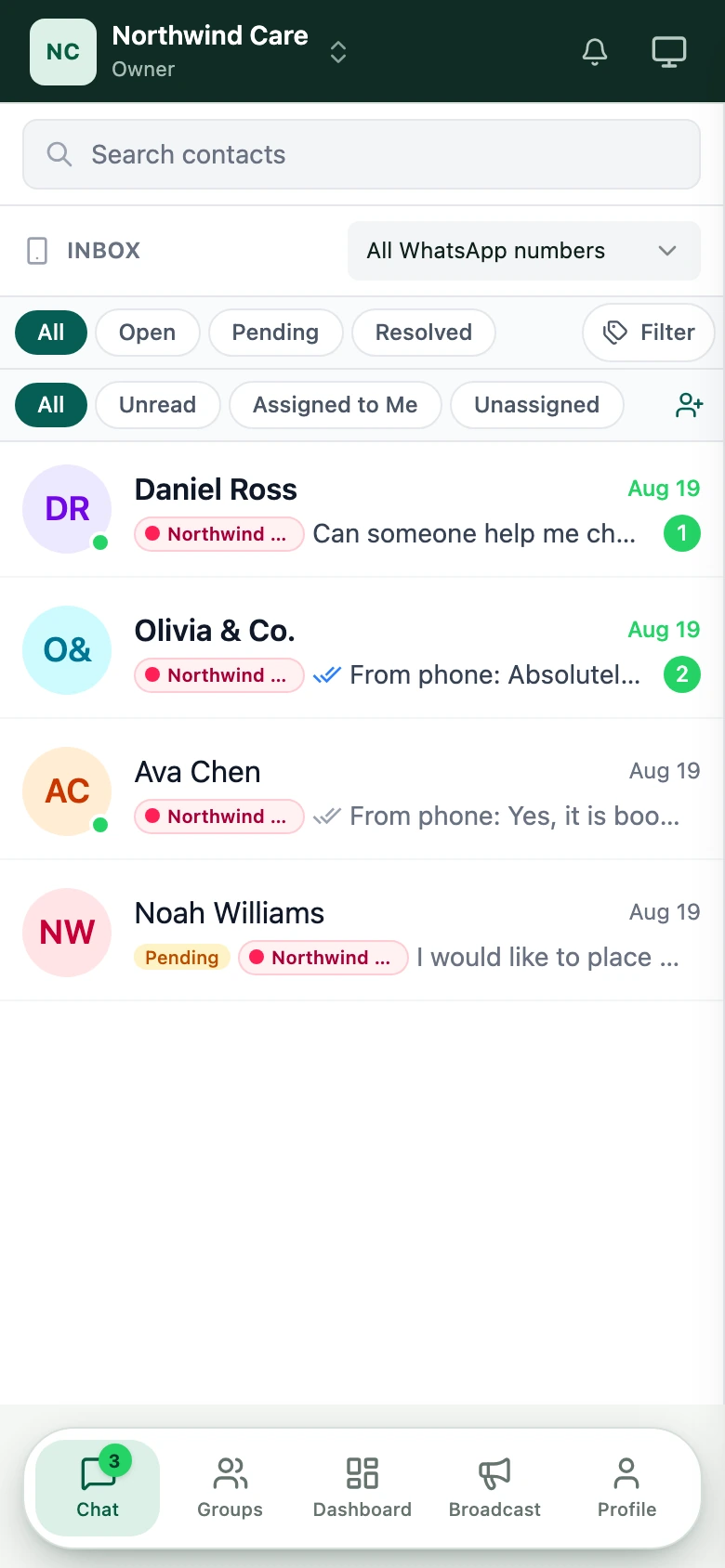
When you install WATeamInbox as a PWA, your phone adds a WATeamInbox icon to the Home Screen or app launcher. Opening that icon gives the application its own window, without the usual browser address bar taking up space.
The installed app and the browser version use the same:
- workspace, account, and permissions
- conversations, assignments, notes, and tags
- WATeamInbox server and web address
- security and sign-in session
- application updates
There is no second inbox to synchronize. A reply sent from the installed app appears in the same shared conversation your teammates see on desktop.
The PWA also follows the mobile layout. The inbox list takes the full width of the screen. Tapping a conversation moves into the message thread, and the back control returns to the queue. The composer accounts for the on-screen keyboard and supported phone safe areas.
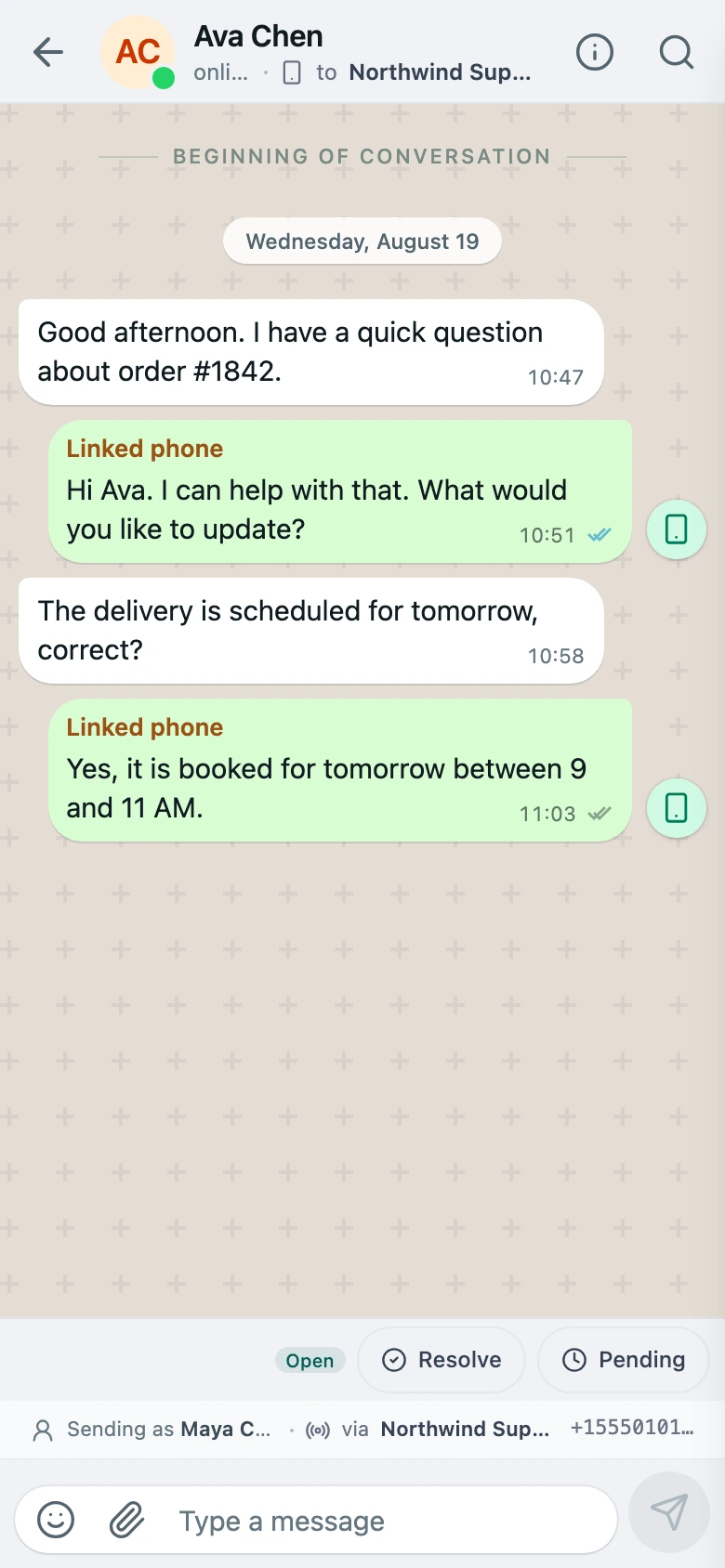
A PWA is not an offline copy of your inbox. WATeamInbox currently needs a working internet connection to load current conversations and send messages. Installing it does not make messages available offline.
Before you install it
You need:
- A WATeamInbox account with access to a workspace.
- The HTTPS address of your application.
- Safari on iPhone or iPad, or Chrome on Android.
- Permission to add apps or Home Screen shortcuts on the device.
For Cloud, use app.wateaminbox.com. For self-hosting, use your own WATeamInbox HTTPS address. Do not install from a temporary development URL or a plain HTTP address.
Sign in and confirm that you can open the intended workspace before installing. This avoids adding an icon for the wrong environment if your team has separate test and production deployments.
Install WATeamInbox on iPhone or iPad
Use Safari for the most predictable iPhone and iPad installation flow.
- Open Safari.
- Go to your WATeamInbox address. Cloud users can open app.wateaminbox.com.
- Sign in and open the workspace you normally use.
- Tap Safari’s Share button—the square with an upward arrow.
- Scroll through the actions and tap Add to Home Screen.
- Keep the suggested name, or shorten it if your Home Screen requires it.
- Tap Add.
- Return to the Home Screen and open the WATeamInbox icon.
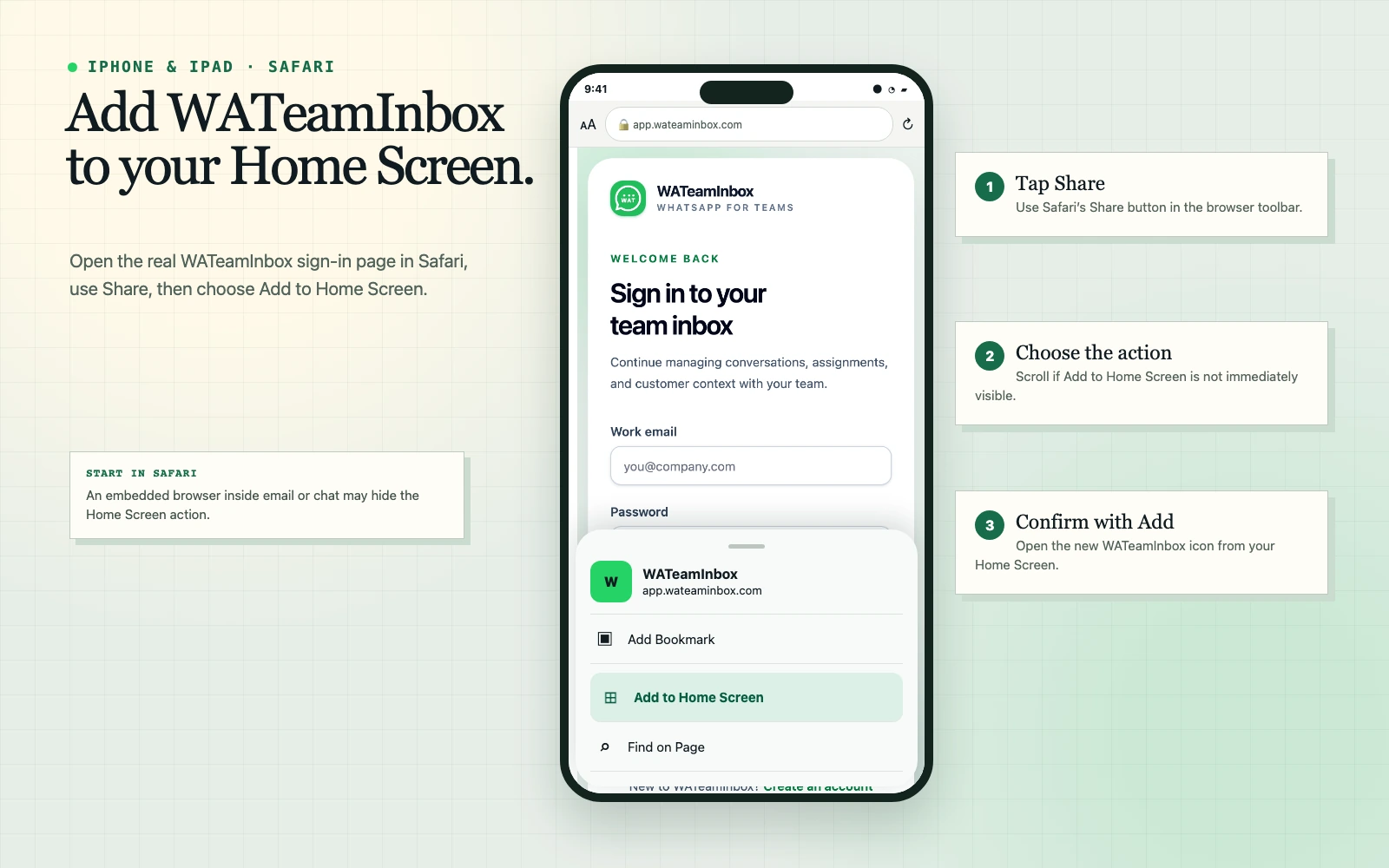
If Add to Home Screen is not visible, scroll down in the Share sheet. You can also tap Edit Actions and add it to your favourites. If you opened WATeamInbox from a link inside email, chat, or another app, first choose Open in Safari and repeat the steps there.
The first launch from the new icon may ask you to sign in again. That is normal when the Home Screen app does not share an existing browser session on a particular OS version or device configuration.
Install WATeamInbox on Android
Chrome may label the action Install app or Add to Home screen, depending on the browser version and device.
- Open Chrome.
- Go to your WATeamInbox HTTPS address.
- Sign in and open your workspace.
- Tap Chrome’s three-dot menu.
- Choose Install app or Add to Home screen.
- Confirm the installation prompt.
- Open WATeamInbox from the new launcher or Home Screen icon.
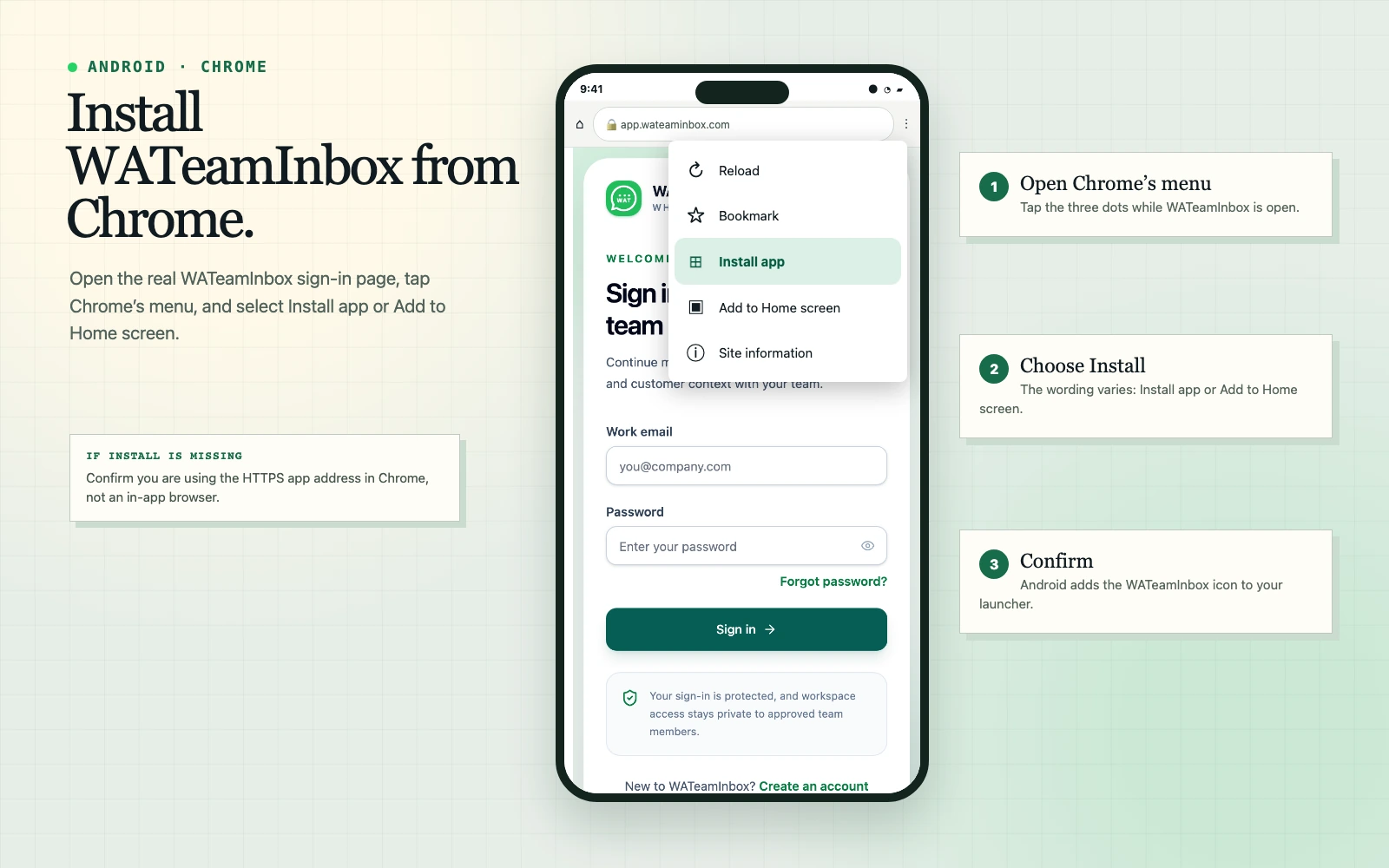
An installed PWA normally opens in a standalone window. If it continues to open as an ordinary Chrome tab, remove that shortcut, return to the application in Chrome, and use Install app when that option is available.
You can install it on a computer too
The same approach works in desktop Chrome and Microsoft Edge:
- Open WATeamInbox in the browser.
- Look for the install icon at the right side of the address bar, or open the browser menu.
- Choose Install WATeamInbox or Apps → Install this site as an app.
- Confirm the prompt.
Desktop installation is useful for teammates who want WATeamInbox in a separate window, taskbar, Dock, or application switcher without keeping track of a browser tab.
Enable message notifications on the device
Installing the PWA and allowing notifications are separate decisions. Installation does not automatically grant notification permission.
After opening the installed app:
- Sign in to the correct workspace.
- Open Profile and go to Settings.
- Open Notifications.
- Enable message notifications.
- Accept the phone or browser permission prompt.
- Use Send test notification if it is available.
Notification delivery depends on browser and operating-system support. On a self-hosted deployment, the server-side web-push configuration must also be complete. If the device is in Focus, Do Not Disturb, battery-saving, or notification-summary mode, the operating system may delay or hide an alert even when WATeamInbox is configured correctly.
On iPhone and iPad, web push requires a supported iOS/iPadOS version and is intended for web apps added to the Home Screen. Open the installed icon before enabling notifications, rather than granting permission from a normal Safari tab.
What is better about using the installed app?
Faster access during a shift
The icon gives an agent a direct route to the shared queue. There is no need to find the correct tab, recover it from browser history, or type the application address.
More usable screen space
Standalone mode removes most browser chrome. On a small screen, that leaves more room for the conversation, composer, assignment state, and navigation.
One application across devices
A teammate can use the same account on a phone, tablet, and computer. The interface adapts to each screen while the workspace remains authoritative.
Updates without an app-store rollout
The web application is served by your Cloud or self-hosted deployment. When that deployment is updated, teammates receive the current web version without waiting for a separate mobile-store release.
A safer alternative to sharing a phone
Each teammate still signs in with an individual account and receives only the permissions assigned to them. Installing the PWA does not require sharing one WATeamInbox password or handing around the phone connected to WhatsApp.
What the installed app does not change
Installing WATeamInbox does not:
- turn it into an official WhatsApp or Meta application
- remove the need for your WhatsApp number to remain properly connected
- add offline sending or offline conversation storage
- bypass workspace roles, assignments, or send permissions
- create a second copy of your customer data
- guarantee push delivery when the OS suppresses notifications
WATeamInbox uses an unofficial WhatsApp client library and is not affiliated with WhatsApp or Meta. The same connection risks apply whether you open WATeamInbox in a browser or as an installed PWA.
Mobile security checklist
A Home Screen icon makes access easier, so treat the device as a work endpoint:
- use a PIN, password, fingerprint, or Face ID on the phone
- do not install a signed-in workspace on a shared public device
- keep the phone and browser updated
- hide sensitive notification previews if messages may appear on the lock screen
- sign out before giving the device to another person
- remove a lost device’s access by changing credentials and reviewing the affected teammate account
- remove former teammates from the workspace instead of relying on them to uninstall the icon
Removing the PWA from a phone only removes the local icon and application data. It does not delete the WATeamInbox account, workspace, messages, or WhatsApp connection.
Troubleshooting installation
The install option is missing
Confirm that the address begins with https:// and that you opened it in Safari on iPhone/iPad or Chrome on Android. Embedded browsers inside email and messaging apps often hide installation actions.
On Android, reload the page once and check the three-dot menu again. A managed company phone may also block app installation through device policy.
The icon opens the wrong WATeamInbox environment
Remove the icon, open the correct production address directly in the browser, verify the workspace, and install again. This is especially important for self-hosters who keep staging and production on different domains.
The installed app shows an old page after an update
Close the app completely and reopen it. If necessary, open the same address in the browser and reload once. Do not clear site data unless you are prepared to sign in again.
Notifications do not arrive
Check all three layers:
- WATeamInbox notification settings are enabled.
- The browser or installed app has OS notification permission.
- Focus, battery, and background restrictions are not suppressing alerts.
Self-hosters should also verify their web-push configuration. Notification support does not mean the inbox works offline.
The keyboard covers the reply box
Update the operating system and browser, close the installed app, and reopen it. If the issue remains, use the browser version temporarily and report the phone model, OS version, browser version, and a screenshot through the project’s GitHub repository.
A practical rollout for a team
Start with one or two teammates rather than asking everyone to install it at once. Have each person:
- Install from the same production address.
- Sign in with their individual account.
- Open the correct workspace.
- Send and receive a test conversation.
- Test an assignment and internal note.
- Enable and test notifications if your deployment supports them.
- Check that the lock-screen preview matches your team’s privacy policy.
Once those checks pass, add the PWA step to your onboarding notes. Pair it with the guides for working from the shared inbox and reviewing conversations during a handoff.
For Cloud, open app.wateaminbox.com on the device you want to use and follow the relevant installation steps above. If you operate WATeamInbox yourself, review the self-hosting documentation and make sure the production site is served over HTTPS before sending installation instructions to your team.