A shift is ending, three customer conversations are still open, and the next person needs a handoff. Until now, using an AI assistant for that job meant copying messages out of the inbox and explaining the workspace from scratch.
WATeamInbox now has a remote Model Context Protocol (MCP) server. You can connect a compatible AI client—such as Claude, ChatGPT, Claude Code, or Cursor—to your workspace and let it use the inbox tools you approve.
You can also use the same MCP server when you build an agent of your own.
What MCP changes
MCP is a standard way for an AI application to discover and call tools provided by another service. Instead of teaching every AI client a separate WATeamInbox integration, we expose one endpoint:
https://app.wateaminbox.com/api/mcp
When your AI client connects, this is what happens:
- The client sends a personal WATeamInbox API token.
- WATeamInbox shows it the tools allowed by that token’s scope.
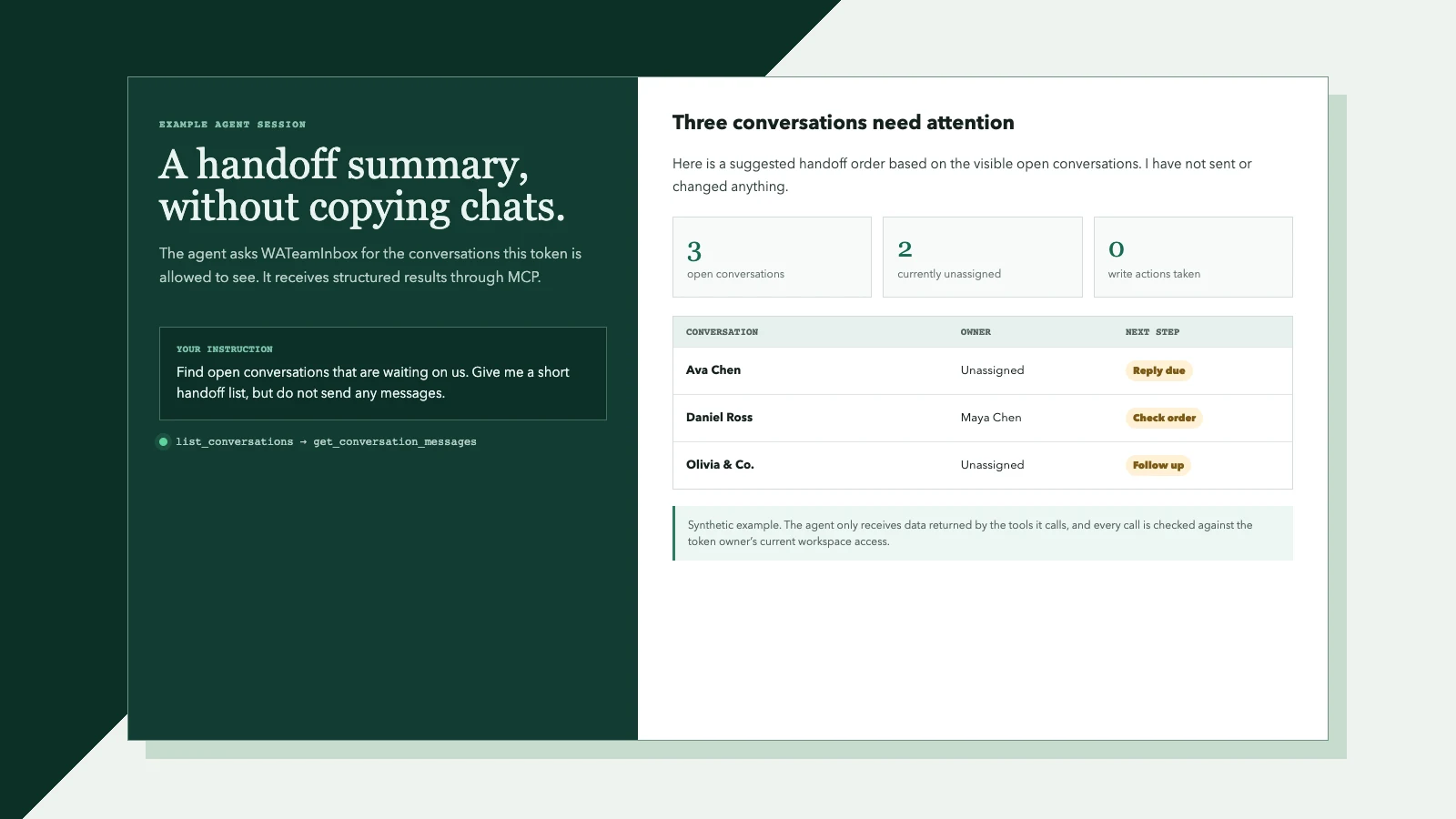
- You ask the AI client to do something, such as find unread conversations or prepare a handoff list.
- The client chooses an MCP tool and sends a structured request.
- WATeamInbox checks the token owner’s current workspace membership, role, permissions, and conversation visibility before running the tool.
- The tool returns a compact result to the AI client.
Connecting does not upload the whole inbox. The AI provider receives the information returned by the tools its client calls, so its own data and retention terms still matter. Review those terms before using customer conversations with any third-party AI service.
What an AI client can do today
The first release includes tools for common inbox work.
With a read-only token, an AI client can:
- search messages and contacts
- list open, pending, or resolved conversations
- read visible conversation history
- read contact details and notes
- list workspace members and tags
- check broadcast status
A read + write token can also expose tools to:
- send a message
- assign or unassign a conversation
- change a conversation’s status
- add a contact note
- create and apply tags
- schedule a bulk broadcast
These tools do not bypass the product’s access rules. If you cannot view a conversation in WATeamInbox, your token cannot retrieve it through MCP. If your role cannot send messages or create broadcasts, an AI client using your token cannot do those things either.
Set it up in WATeamInbox
1. Open the AI agents settings
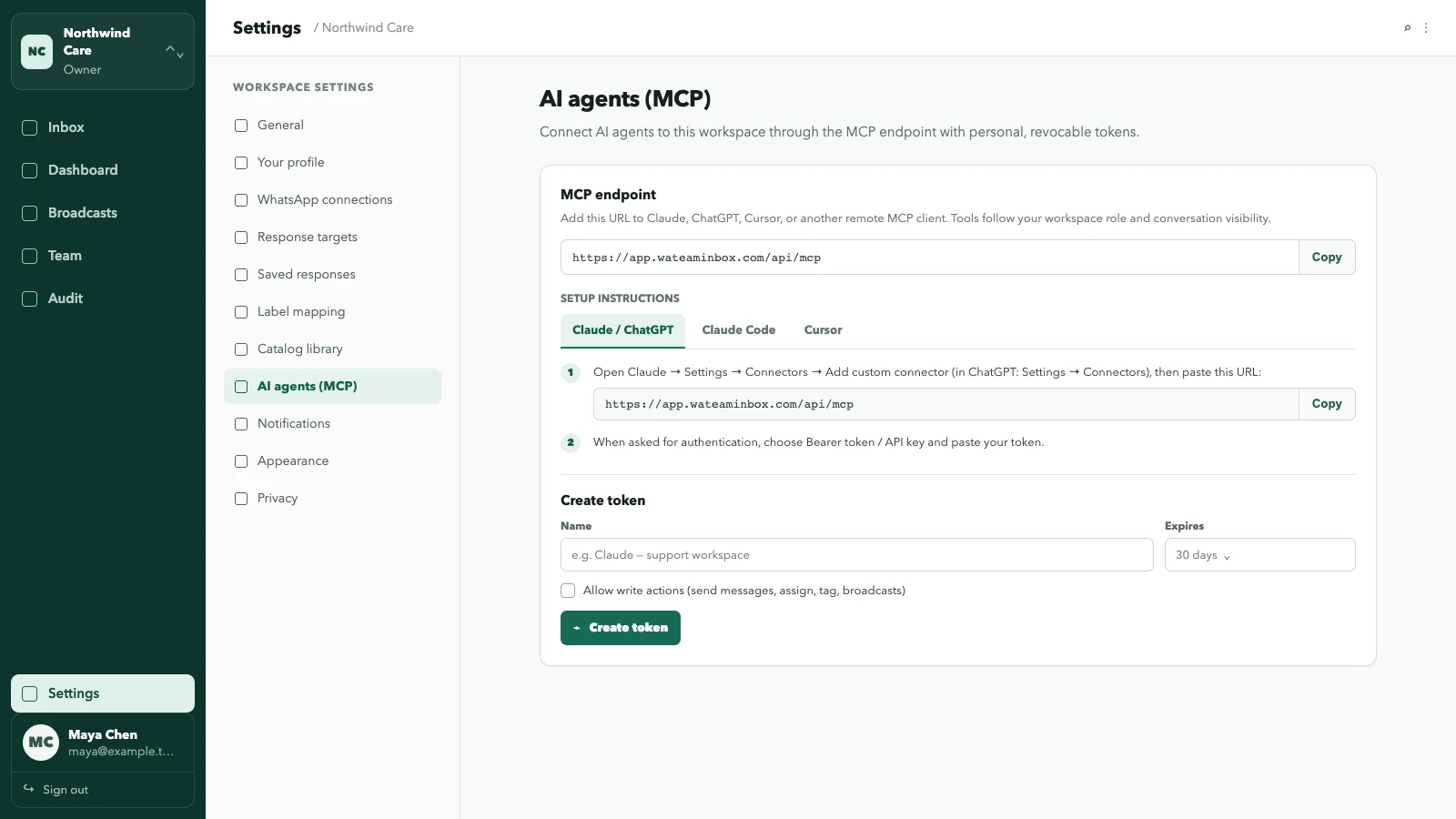
Sign in to your workspace and go to Settings → AI agents (MCP). The page shows the remote endpoint and setup instructions for several clients.
2. Create one token for one agent
Give the token a name that tells you where it is used, such as Claude — support workspace or Morning handoff agent.
Start with read-only access. Turn on write actions only when the agent has a specific reason to send messages or change workspace data. You can also set an expiry of 30 days, 90 days, or one year instead of keeping a token indefinitely.
3. Copy the token once
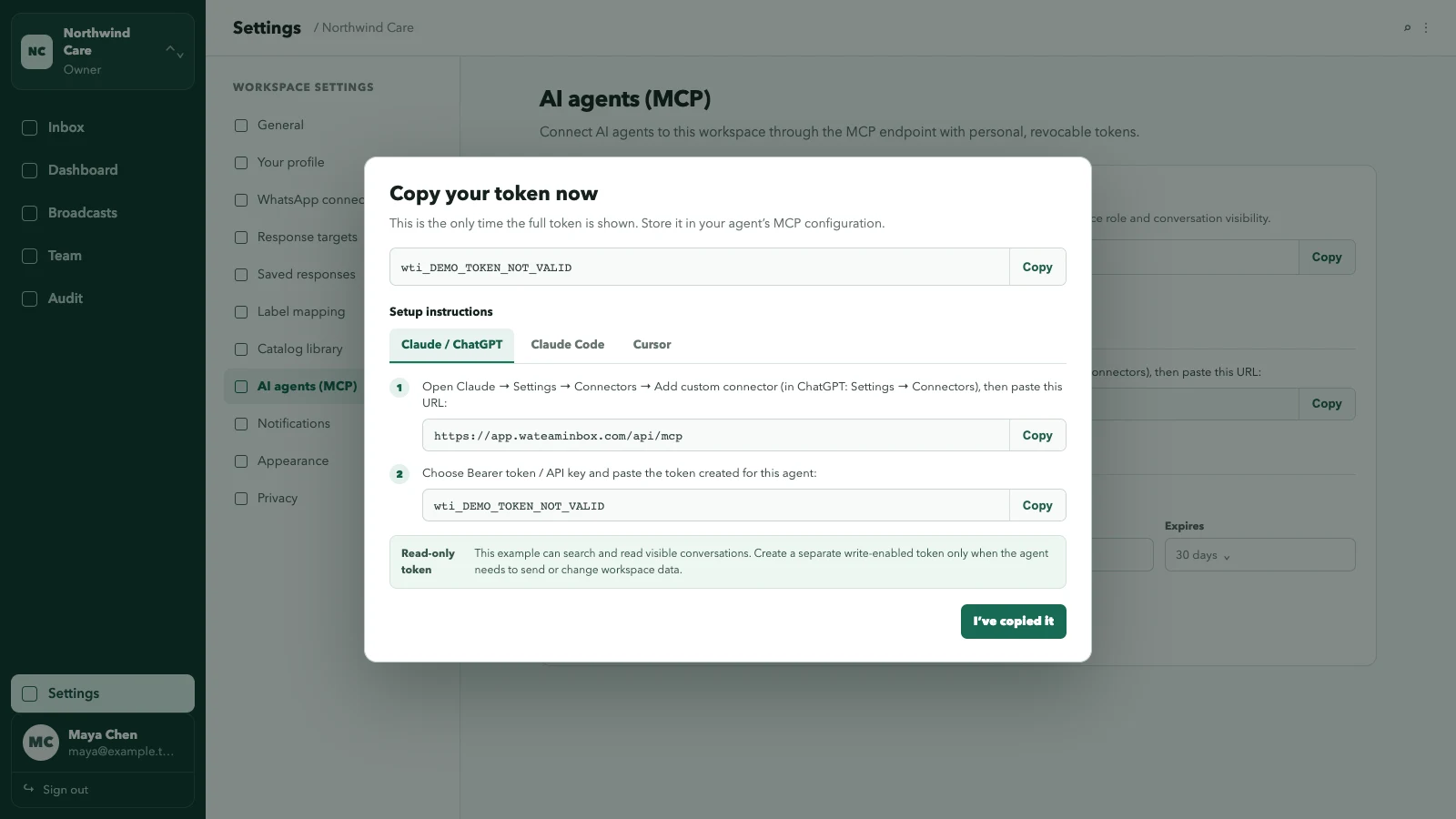
The full wti_... token appears only after creation. Copy it directly into the MCP client’s secure configuration. Do not put it in a prompt, source file, screenshot, or shared document.
4. Add WATeamInbox to Claude or ChatGPT
In Claude, open Settings → Connectors → Add custom connector. In ChatGPT, open Settings → Connectors and add the WATeamInbox endpoint where custom connectors are available.
Use:
- URL:
https://app.wateaminbox.com/api/mcp - Authentication: Bearer token / API key
- Token: the
wti_...value you just copied
Connector names and availability can vary by AI client, account plan, and workspace policy. The setup page inside WATeamInbox keeps the current URL and copyable values together.
For Claude Code, the page also gives you a terminal command:
claude mcp add --transport http wateaminbox \
  https://app.wateaminbox.com/api/mcp \
  --header "Authorization: Bearer wti_YOUR_TOKEN"
For Cursor and clients that use the same configuration shape:
{
  "mcpServers": {
    "wateaminbox": {
      "url": "https://app.wateaminbox.com/api/mcp",
      "headers": {
        "Authorization": "Bearer wti_YOUR_TOKEN"
      }
    }
  }
}
Replace the placeholder locally. Never publish the finished configuration with a real token inside it.
A few useful first requests
Start with requests that only read data, then compare the answer with the inbox:
- “List my open conversations and tell me which ones are unread.”
- “Summarize the latest messages in this conversation. Do not send a reply.”
- “Prepare a short handoff list for open conversations assigned to me.”
- “Find conversations that mention order 1842.”
- “Show the current status of the latest broadcast.”
Be explicit when you do not want a write action. AI models can misunderstand instructions, so review names, message text, recipients, and dates before allowing a client to send or schedule anything.
Build your own agent with the same MCP server
You do not have to use a general chat client. A small internal agent can connect to the same endpoint and handle one narrow job—for example, preparing a morning queue summary, finding unresolved order questions, or drafting a shift handoff.
The official TypeScript MCP SDK can connect over Streamable HTTP and attach the token as an authorization header:
import { Client } from "@modelcontextprotocol/sdk/client/index.js";
import { StreamableHTTPClientTransport } from "@modelcontextprotocol/sdk/client/streamableHttp.js";

const token = process.env.WATEAMINBOX_TOKEN;
if (!token) throw new Error("WATEAMINBOX_TOKEN is required");

const client = new Client({
  name: "morning-handoff-agent",
  version: "1.0.0",
});

const transport = new StreamableHTTPClientTransport(
  new URL("https://app.wateaminbox.com/api/mcp"),
  {
    requestInit: {
      headers: { Authorization: `Bearer ${token}` },
    },
  },
);

await client.connect(transport);

const { tools } = await client.listTools();
console.log(tools.map((tool) => tool.name));

const openQueue = await client.callTool({
  name: "list_conversations",
  arguments: { status: "open", limit: 10 },
});
From there, your agent can give the discovered tool definitions to the model you choose and return approved tool calls through the MCP client. The model loop is yours; WATeamInbox remains the tool server and the place where workspace access is enforced.
Keep the first version deliberately small:
- Define one job and the exact tools it needs.
- Create a separate, expiring token for that agent.
- Use read-only scope unless writes are required.
- Keep the token in a secret manager or environment variable.
- Add a human confirmation step before sends, assignment changes, or broadcasts.
- Record tool calls and handle permission, rate-limit, and validation errors.
- Revoke the token from WATeamInbox when the agent is retired.
Owners and admins can review and revoke active workspace tokens. Leaving or being removed from a workspace also revokes the tokens tied to that membership.
The endpoint is stateless Streamable HTTP and uses Authorization: Bearer wti_.... If you are integrating another language or agent framework, use an MCP client that supports that transport and custom request headers. The MCP API notes on GitHub document the server boundary.
This is the start of the AI-facing work
MCP gives WATeamInbox one clear connection point for existing AI clients and for agents your team writes itself. You decide which person and workspace the token belongs to, whether it can write, and when it expires.
We are planning more AI-friendly features around the inbox. We will keep the same approach: practical tools, visible permissions, and a clear boundary around actions that affect customers.
Stay tuned. You can create a WATeamInbox Cloud workspace, compare Cloud plans, or self-host the open-source edition and connect an MCP client today.