For a while, WATeamInbox was something you had to run yourself. That is still an option—and it is a good one for teams that want to own the infrastructure—but not every team wants to maintain a database, workers, backups, and updates just to give a few people one WhatsApp inbox.
WATeamInbox Cloud is ready.
Cloud gives you the same shared inbox as a managed service. Create a workspace, verify your email, connect WhatsApp with a QR code, and invite the people who answer customers with you. There is no server to prepare before your team can start working.
The part that matters: shared work
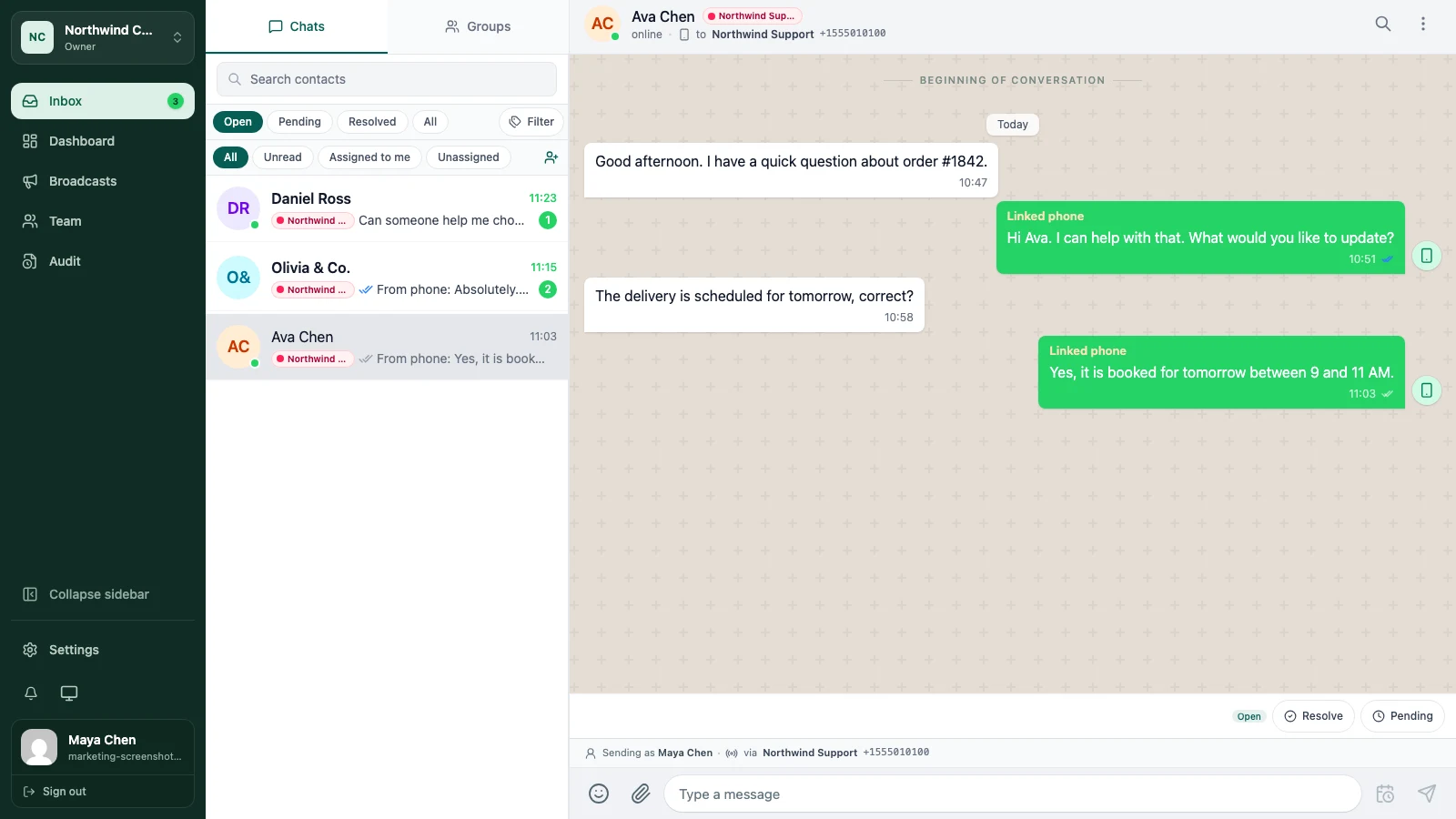
Cloud is not a replacement for WhatsApp. It is the place your team works around the conversations coming through your number.
A teammate can take ownership of a conversation so everyone knows who is replying. Someone else can leave an internal note when a request is waiting on the warehouse or a customer needs a follow-up tomorrow. When a shift changes, the next person can read the thread and continue instead of asking for the whole story again.
Each teammate has an account. Workspace roles and permissions let you decide who can send messages, assign work, manage connections, export data, and change settings.
The current Cloud service also includes the inbox tools teams tend to need after the first few conversations: search, tags, quick replies, scheduled messages, exports, and support for multiple WhatsApp connections where the plan allows it.
Getting started takes a few minutes
The first setup is deliberately short. Here is what each step looks like in Cloud.
1. Create your workspace
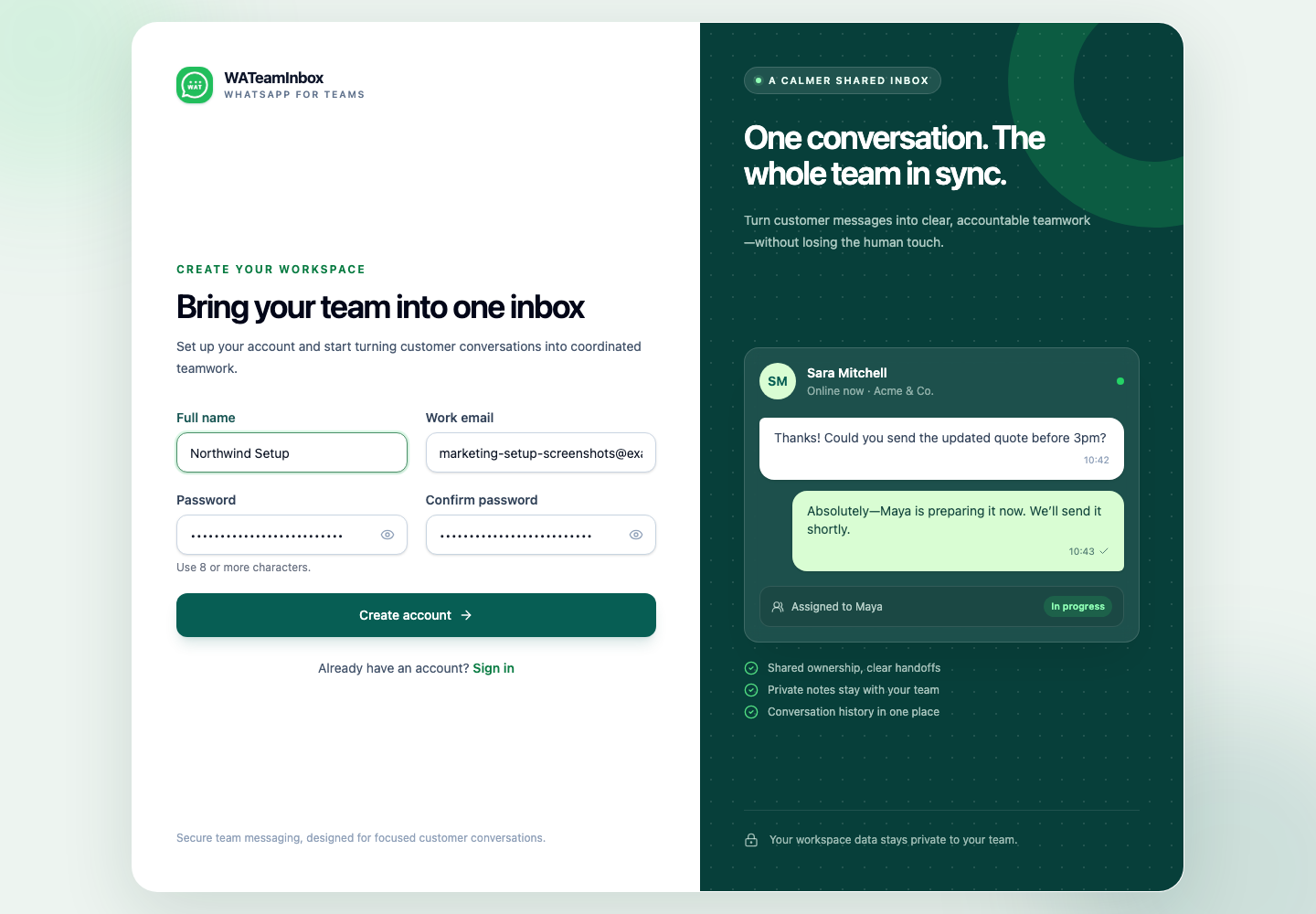
Register at app.wateaminbox.com, verify your email, and give the workspace a name. You can start with just the name; the rest can wait until the team is ready.
2. Connect WhatsApp
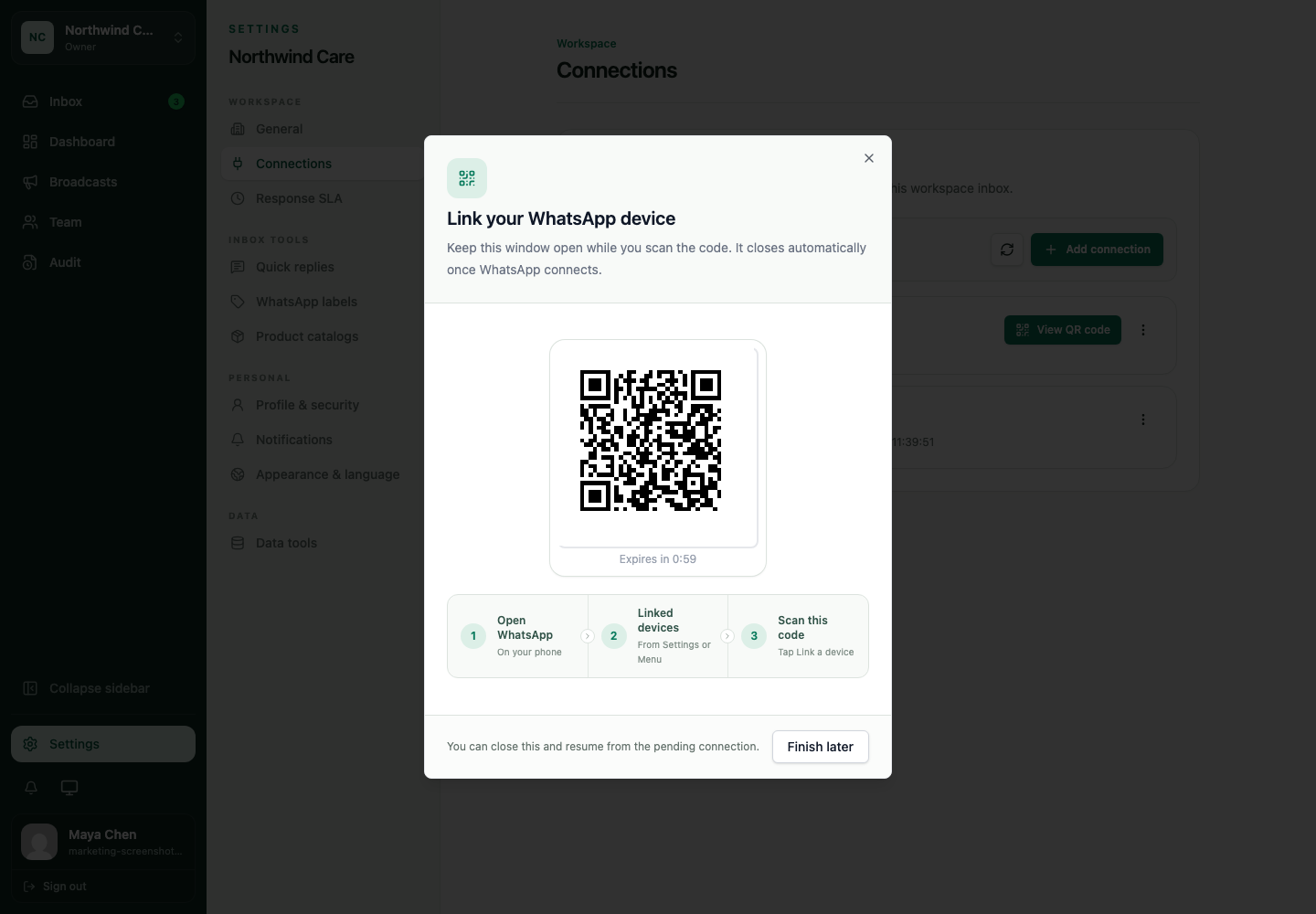
After verification, pair a device by scanning the QR code. On your phone, open WhatsApp, go to Linked devices, and choose Link a device. Once it is connected, Cloud can start receiving the conversation history.
3. Invite your team
Add the teammates who answer customers, choose a role, and review their starting access before sending the invitation. Each person gets their own sign-in instead of sharing one password.
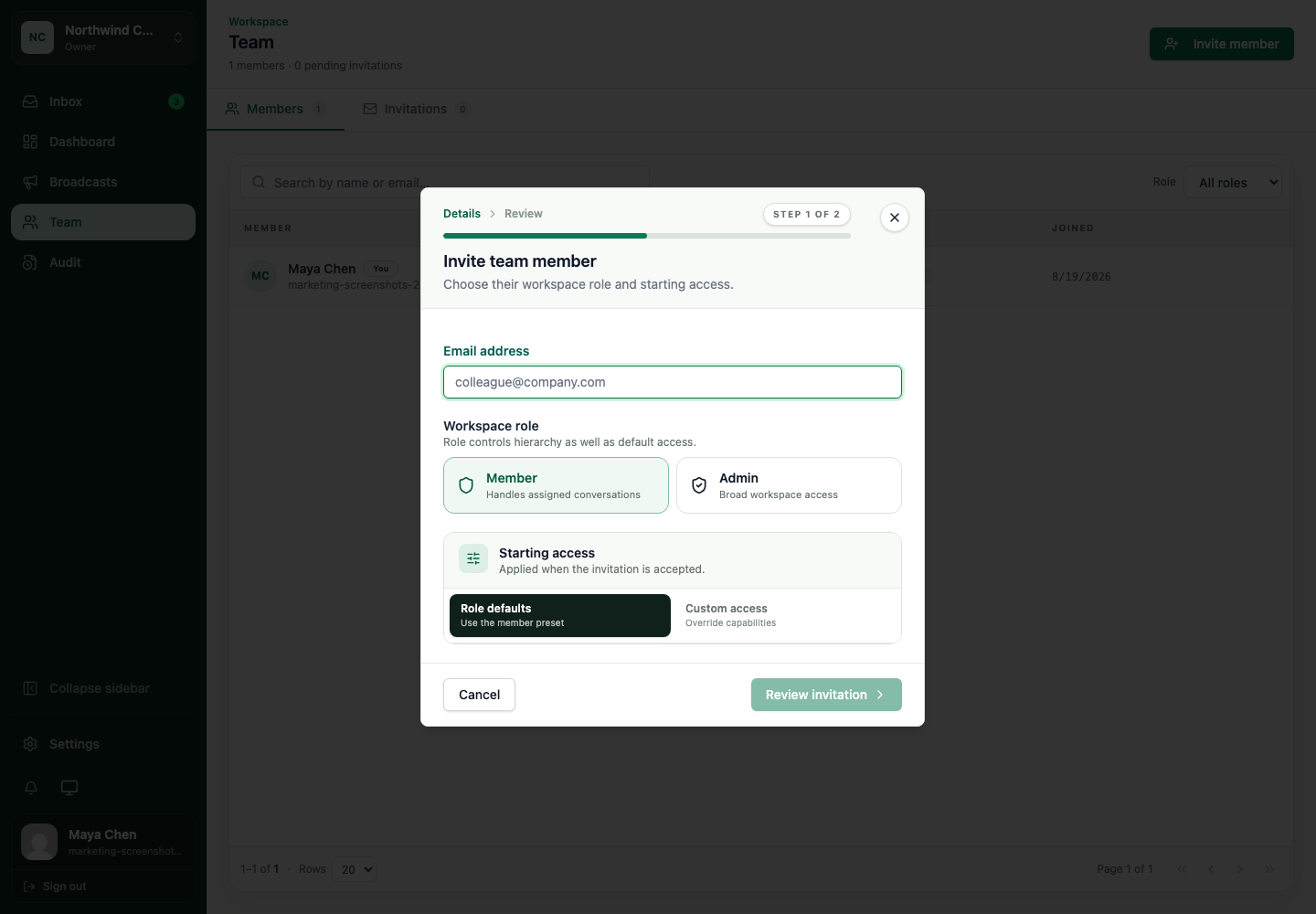
You do not need to invite the whole company on day one. Start with two people and one number, try an assignment and a handoff, and adjust the workflow while it is still small.
Pick the way you want to run WATeamInbox
Cloud is the managed option. We operate the application and handle the updates, while your team focuses on customer conversations.
The self-hosted edition is still available too. The application is MIT-licensed on GitHub, and the self-hosting documentation covers the services, deployment, backups, and access decisions. Choose Cloud if you would rather not operate that stack; choose self-hosting if keeping the application on infrastructure you control is more important.
Cloud plans are monthly: Starter is $39, Team is $89, and Business is $199. Starter and Team are self-serve; Business is currently reviewed with us before setup. See the current plan limits and add-ons before connecting a number.
A couple of things to know first
WATeamInbox uses an unofficial WhatsApp client library. It is an independent project, not a WhatsApp or Meta product, and protocol changes or account restrictions are possible. If the number is important to your business, test with a non-critical number first and keep a fallback process while your team gets comfortable with the connection.
Cloud is available now, but it does not come with an SLA or a high-availability commitment. If your team needs a specific availability or compliance arrangement, contact us before making it part of a critical process.
Give it a small, real test
The best way to decide whether Cloud fits is not to read another feature list. Create a workspace, invite one teammate, connect a low-risk number, and handle a real handoff. You will quickly see whether assignments, notes, and shared history solve the problem your team has been working around.
Create a Cloud account or compare the plans. If you would rather run it yourself, start with the self-hosting guide.