Advanced workflow·Planned messaging
Schedule WhatsApp follow-ups and broadcasts
Plan a message for later or prepare a permission-gated broadcast while keeping timing, consent, and delivery risk visible.
A scheduled message is useful when the timing is part of the work: a reminder tomorrow morning, a follow-up after a delivery, or a message that should not wake a customer tonight.
It is also a feature that deserves a little care. Check the recipient, timing, and wording before you schedule. For bulk messages, check consent and policy before you think about speed.
Schedule a message in a conversation
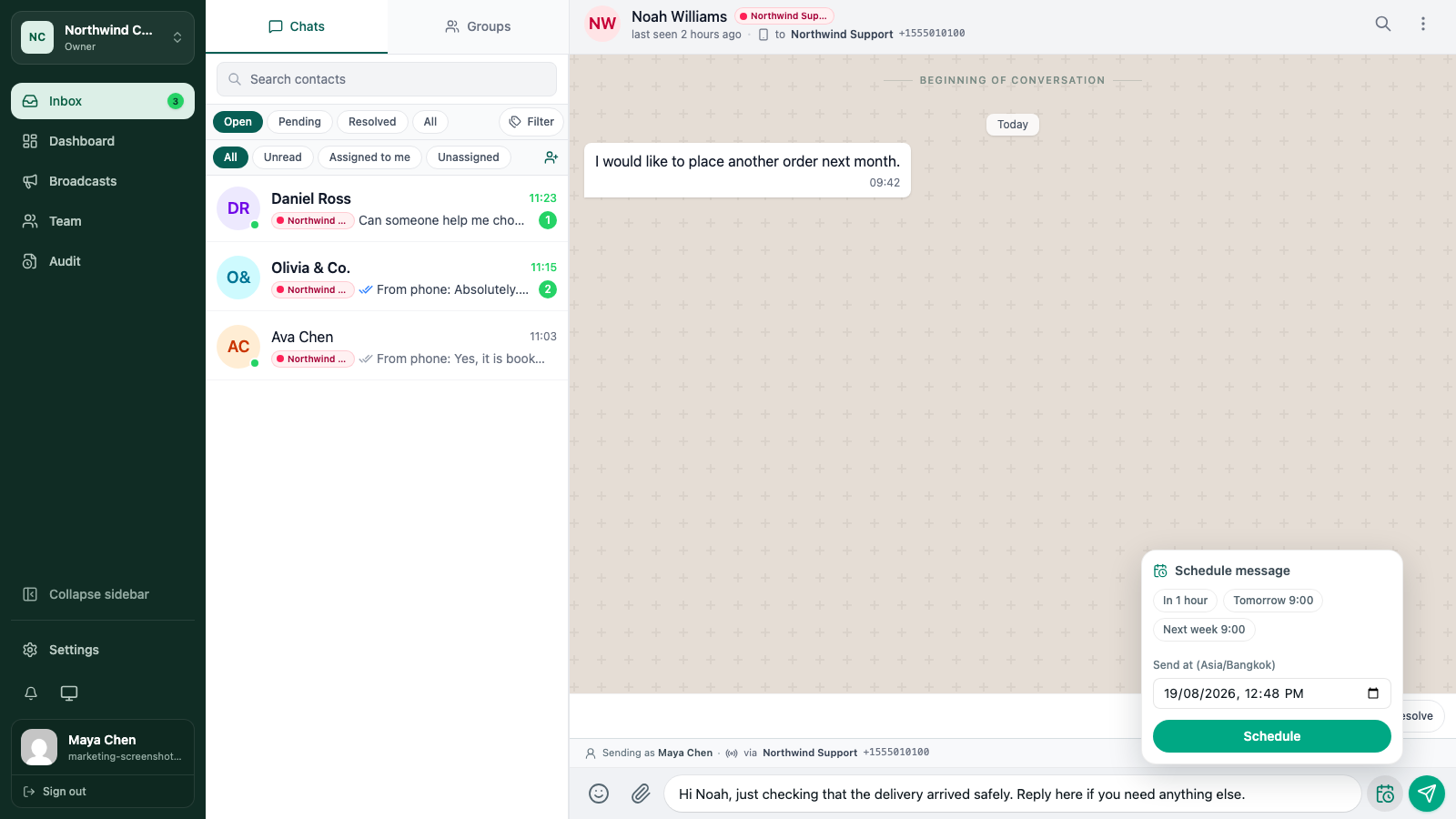
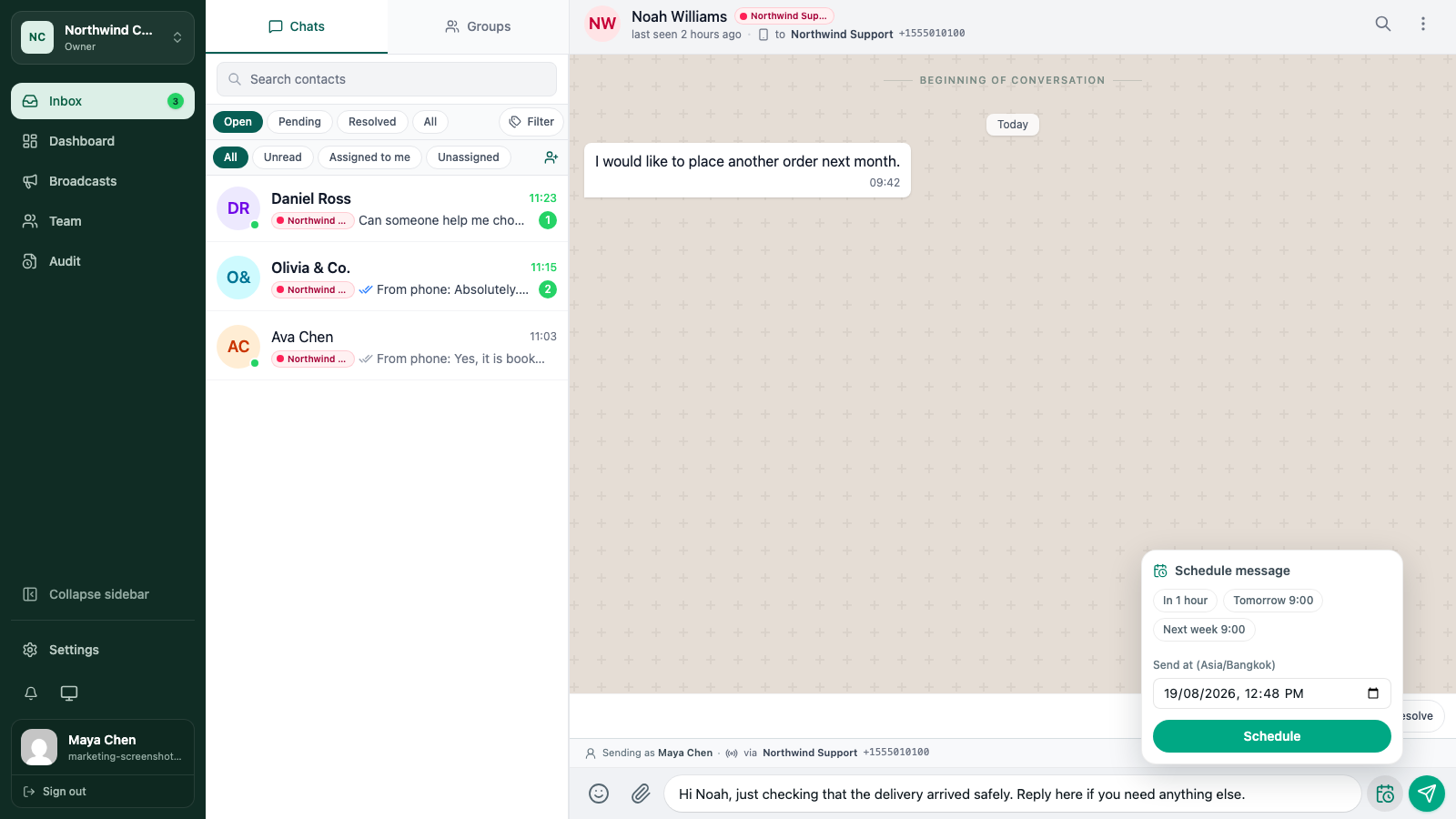
Open the customer conversation and write the message as you normally would. Add an attachment first if the follow-up needs one, then use the schedule control beside the composer.
Choose a future date and time. WATeamInbox shows the timezone used for the schedule, so read it before you confirm. A time that looks right on your laptop can be wrong for a teammate working elsewhere.
Write for the future reader
A scheduled message may be sent after the current conversation has moved on. Include enough context that the customer understands why they are receiving it, but do not include details that could become stale.
Before you confirm, check:
- the customer and connection are correct
- the date and timezone are correct
- the message does not depend on an unconfirmed detail
- any attachment is the final version
You can review upcoming scheduled messages from the conversation before they are sent.
Use broadcasts for a real audience
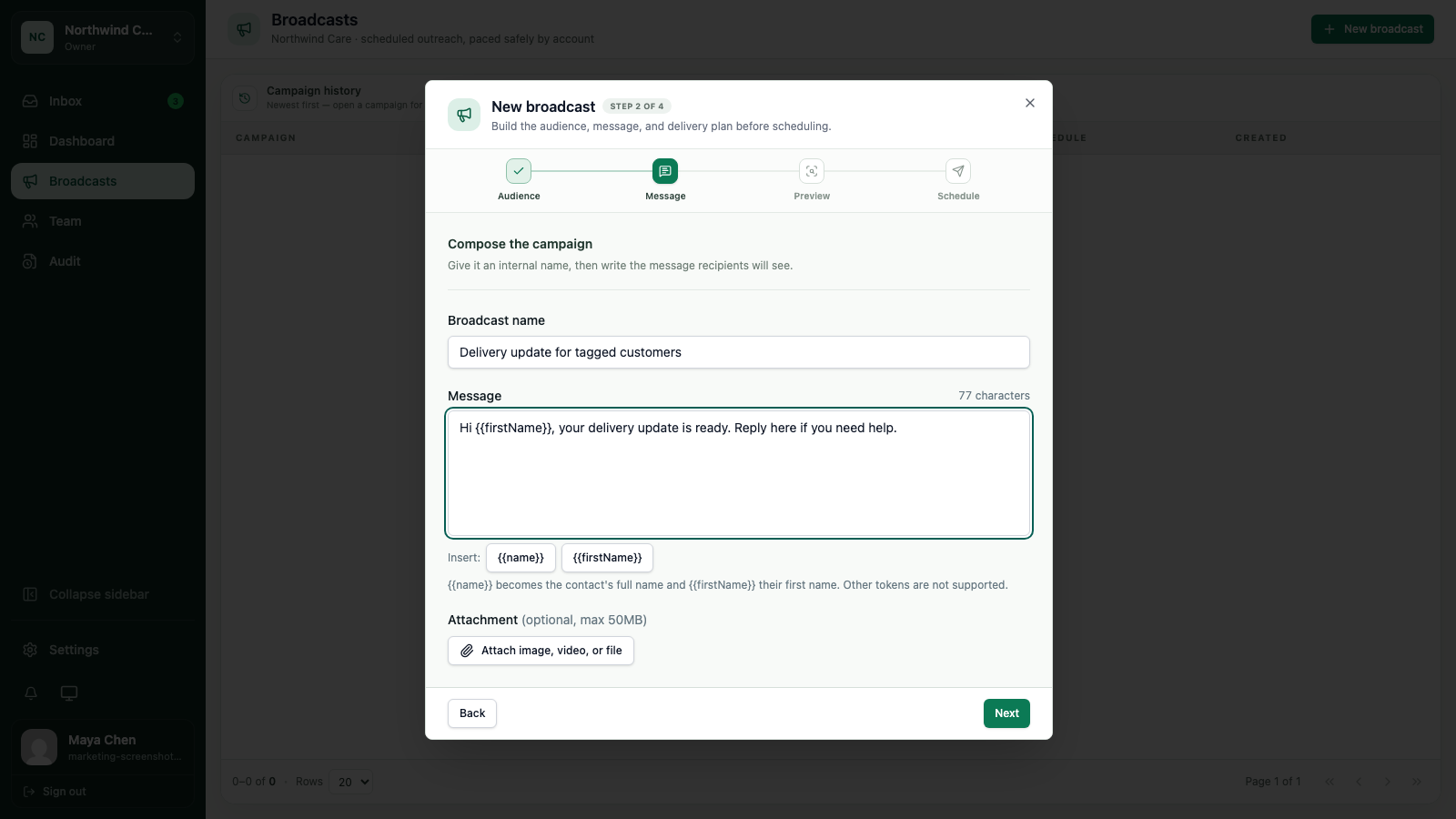
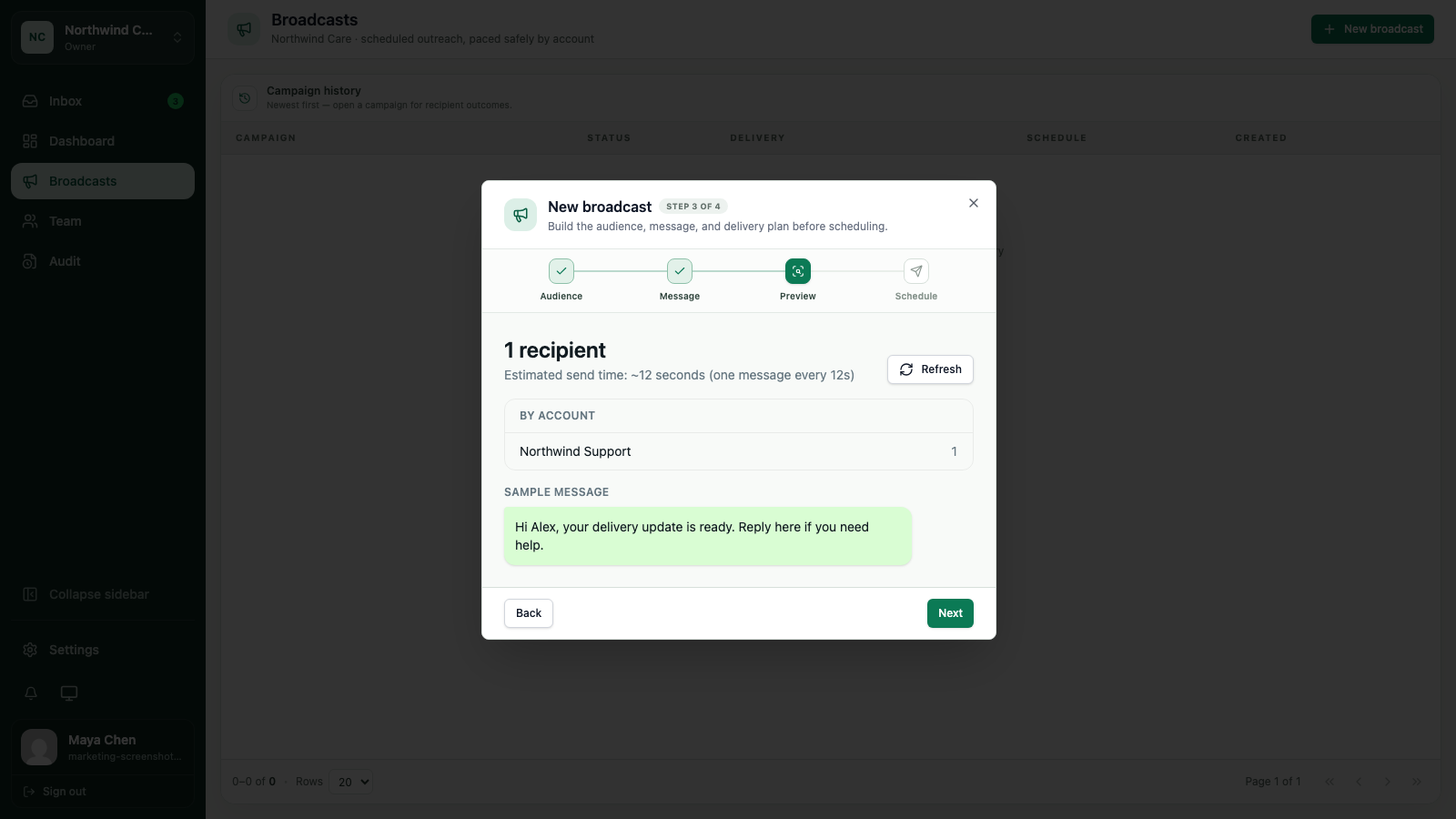
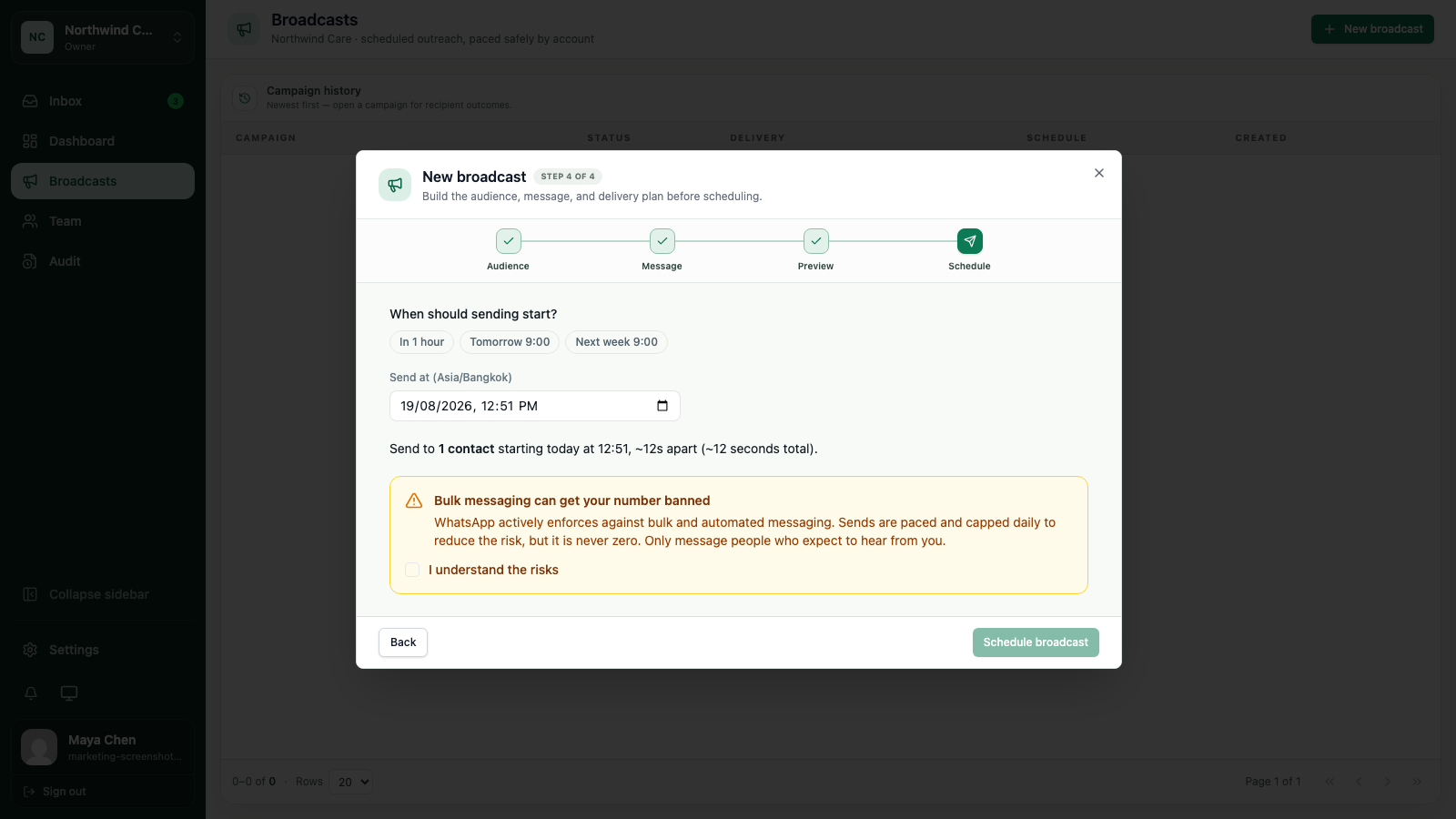
Broadcasts are for permission-gated bulk work, not for sending the same message to every contact by default. Build the audience from a clear set of contacts or tags, preview the recipients, and make sure the message is appropriate for everyone included.
Keep the audience narrow enough to explain. “Customers with a delivery update” is a useful rule. “Everyone in the database” usually needs another question first.
Check consent and account risk
Only send messages to people your business has a reason and permission to contact. Respect opt-outs and your organisation’s communication policy. WhatsApp account restrictions remain possible, especially when a team sends high volumes or messages that recipients do not expect.
WATeamInbox paces bulk work and records per-recipient outcomes, but no tool can make an unwanted message safe. Test a small audience and keep a human review step for important campaigns.
After you schedule
Tell the team what the scheduled message is for. If another person needs to cancel or reschedule it, they should not have to reconstruct the reason from the thread.
For a one-to-one follow-up, a short shared note is usually enough. For a broadcast, keep the audience rule and approval context with the job in your team’s normal process.
Keep going
Try the workflow with one real conversation.
Create a small Cloud workspace and test the handoff with a teammate, or use the open-source application on infrastructure you control.