Daily workflow·Speed up replies
Find conversations faster with search and quick replies
Search the inbox for an older customer message and use saved replies without making every answer sound like a template.
Search helps you recover context. Quick replies help you avoid typing the same useful sentence twenty times. Used together, they make the inbox faster without making the team sound robotic.
The goal is not to turn every customer into a copy and paste exercise. Use saved replies for the repeatable part, then add the detail that belongs to this person.
Search for a conversation
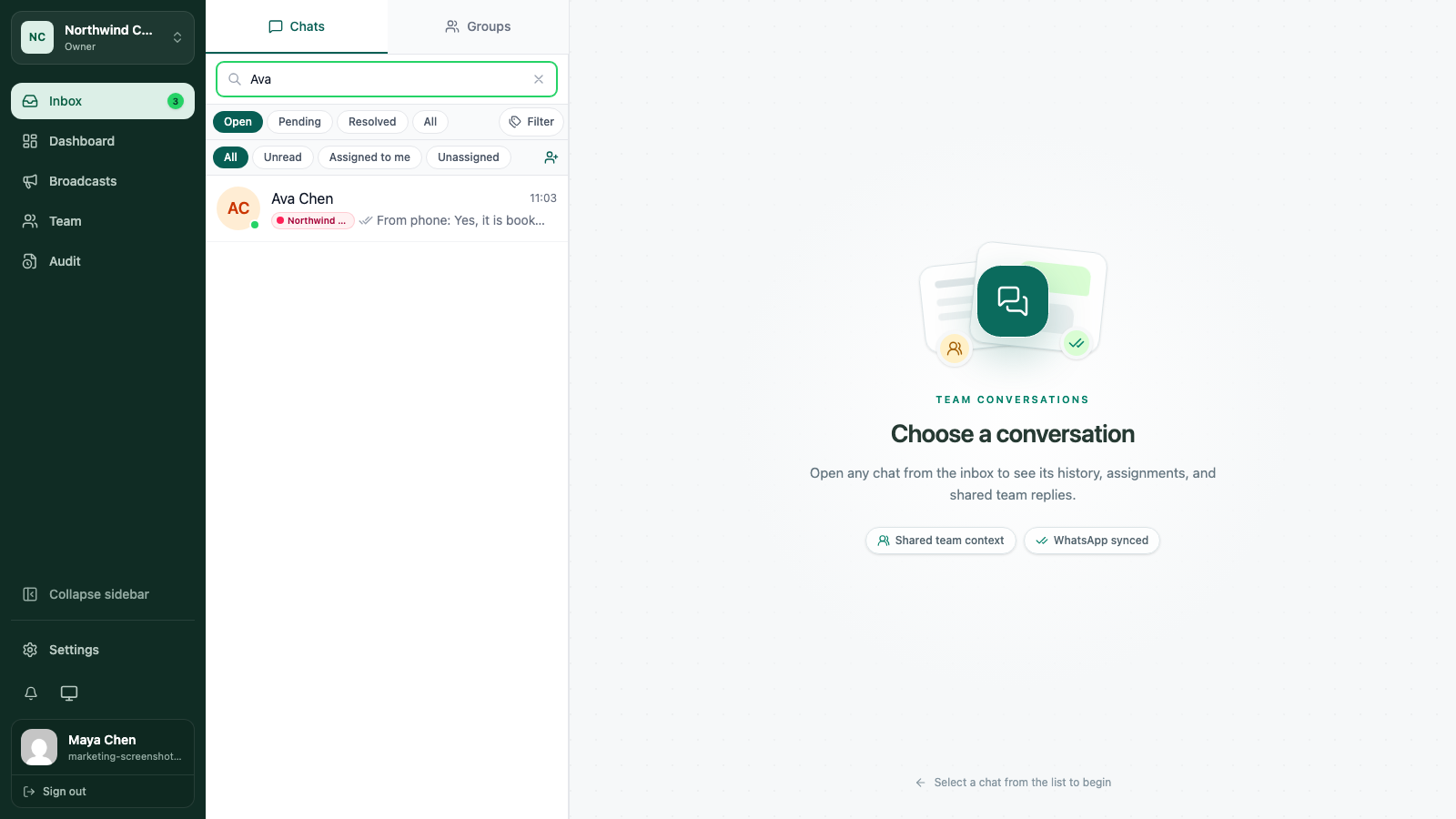
Start in Inbox with the contact search field. Search by the customer name or the information your workspace makes available. Open the result and confirm you have the right conversation before you send anything.
When you need a phrase from an older thread, use the conversation search action. Search is particularly useful when a customer returns after a few weeks and the original owner is not working that day.
Search by state before you search by words
The status and assignment filters can reduce the list before you type a query. Try Assigned to me, Unassigned, Unread, or Pending when you know what kind of work you need.
Tags are useful for durable categories. Search is better for a specific name, order reference, or phrase from a message. Use both instead of making one system carry every kind of information.
Create a quick reply library
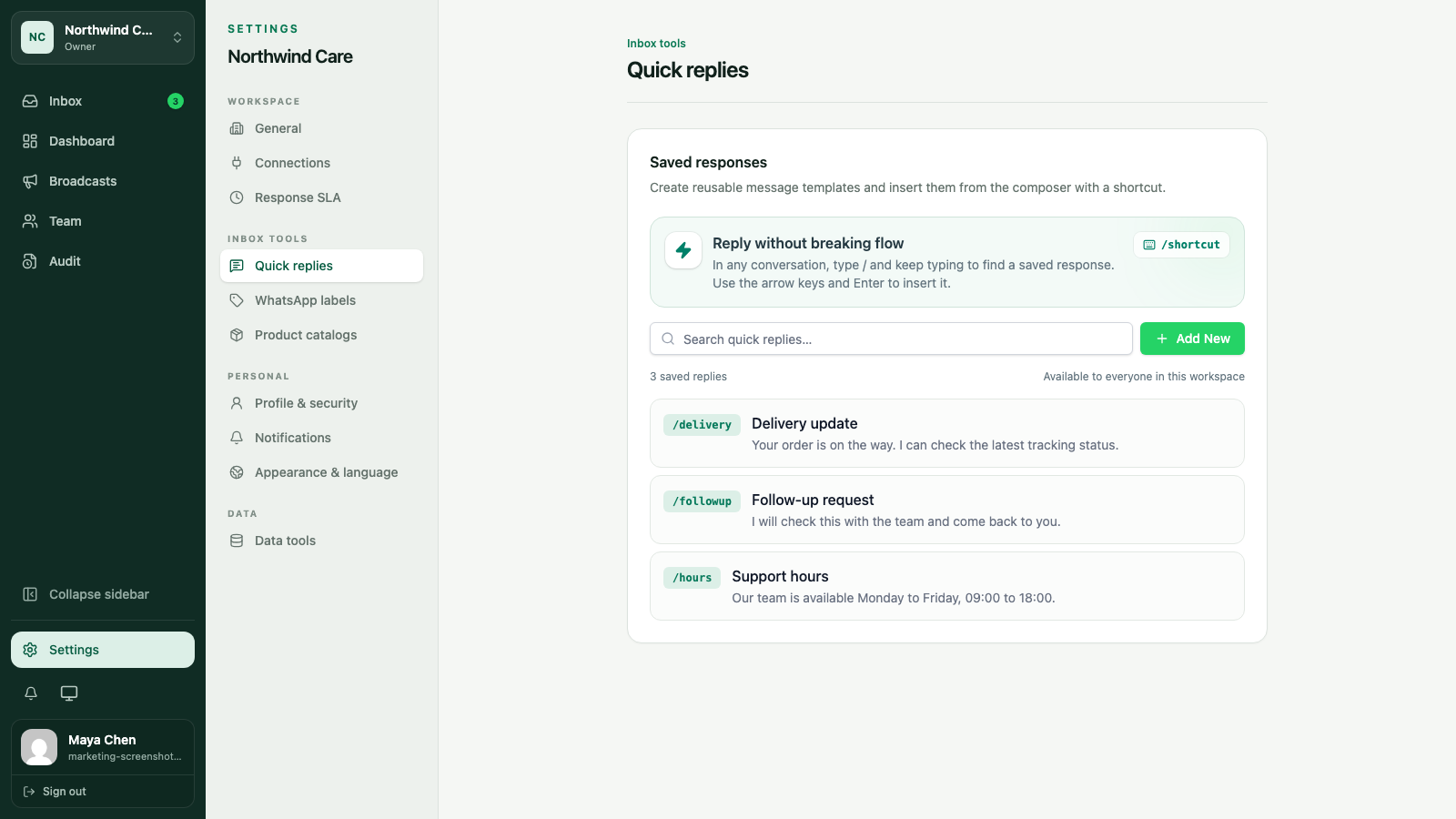
Workspace admins can manage quick replies in Settings → Quick replies. Give each reply a short shortcut and a title that makes sense to the whole team.
A useful saved reply has:
- a clear first sentence
- a place for the teammate to add the customer-specific detail
- no promise that may be wrong for every situation
- a tone your team would actually use
For example, save the stable explanation of your delivery window, then make the teammate add the customer’s order and the current date before sending.
Insert a quick reply
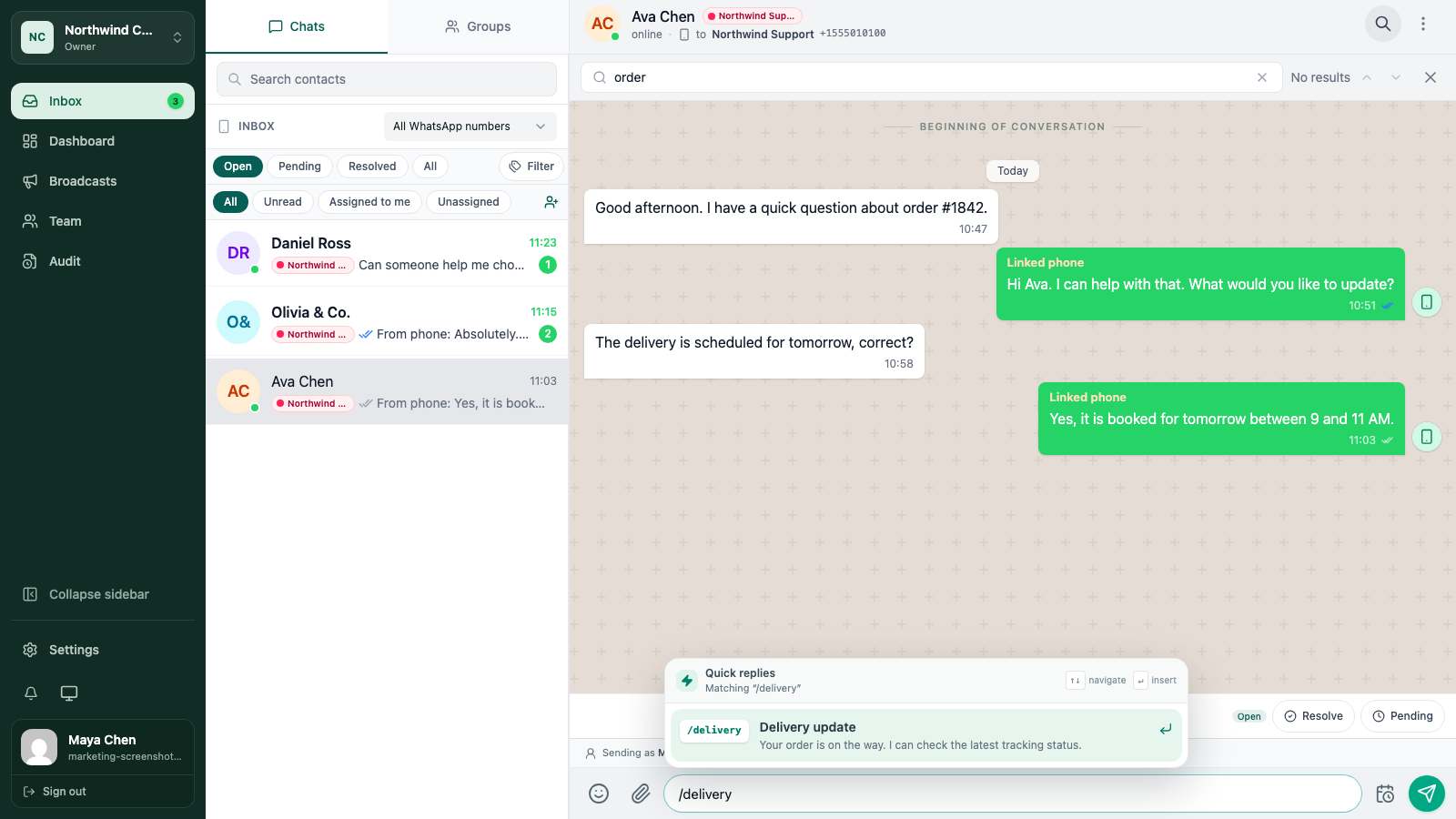
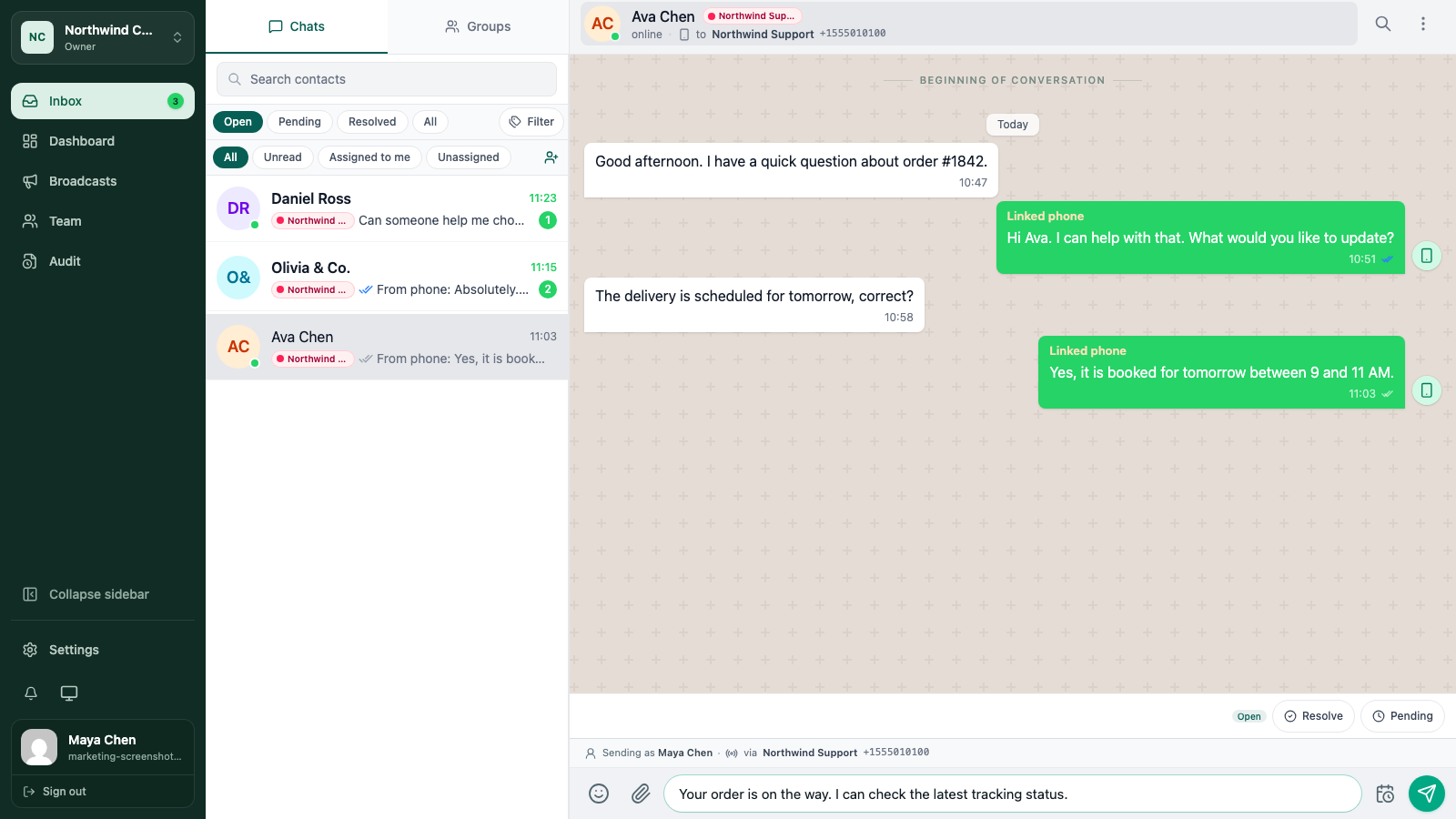
In a conversation, type / in the message composer and continue with the shortcut. Choose the matching reply with the mouse or keyboard, insert it, and read the complete message before sending.
Always edit the result. A saved reply can be correct in general and still be wrong for this customer, this product, or this moment.
Review the library regularly
Remove replies that no longer match the business. If teammates keep editing the same sentence, update the saved version so the next person starts from a better place.
Keep the library small enough to scan. The best quick reply is the one a teammate can recognise in a second.
Keep going
Try the workflow with one real conversation.
Create a small Cloud workspace and test the handoff with a teammate, or use the open-source application on infrastructure you control.