Getting started·Connections
Connect WhatsApp to your team inbox
Pair a WhatsApp device with WATeamInbox, wait for the first sync, and understand what happens when a connection changes state.
A WhatsApp connection is the bridge between the phone your business already uses and the shared inbox your team needs. Pairing takes a few minutes. The important part is what you do after the QR code works: give the first history sync time to finish, then test one conversation before inviting everyone.
Before you scan
Use a phone that can stay online while the account is being paired. Open WhatsApp on that phone and make sure you can reach Linked devices from the settings menu.
If this is your first test, use a non-critical number. WATeamInbox is not an official WhatsApp or Meta product, and protocol changes or account restrictions are possible with an unofficial client connection.
1. Add the connection
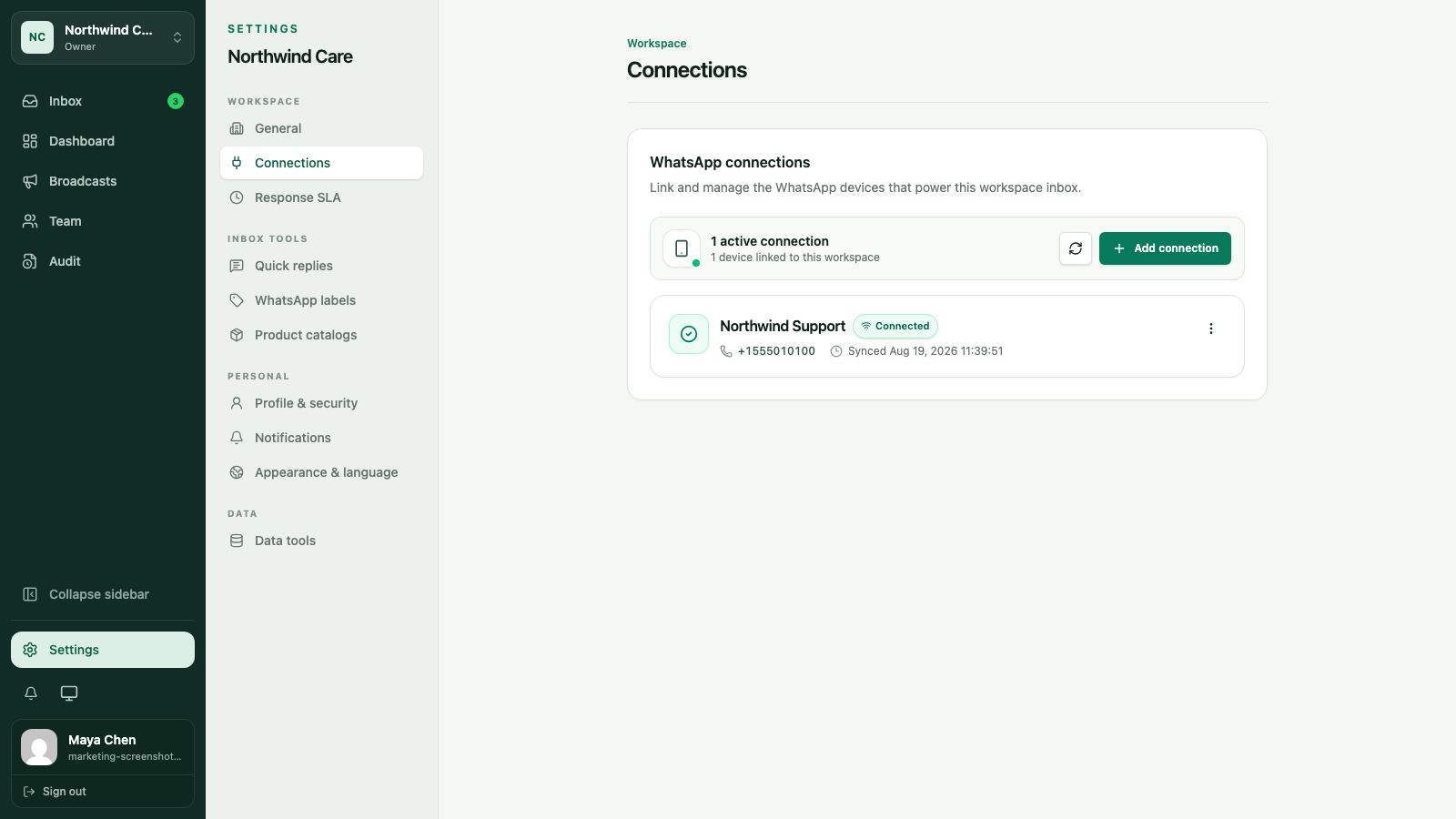
In the workspace, open Settings → Connections and choose Add connection. Give the connection a name that tells the team which number it represents, such as Support or Sales Singapore.
A useful name matters once you have more than one WhatsApp number. It also makes it easier to spot the right sending identity when a teammate writes a reply.
2. Open the pairing window
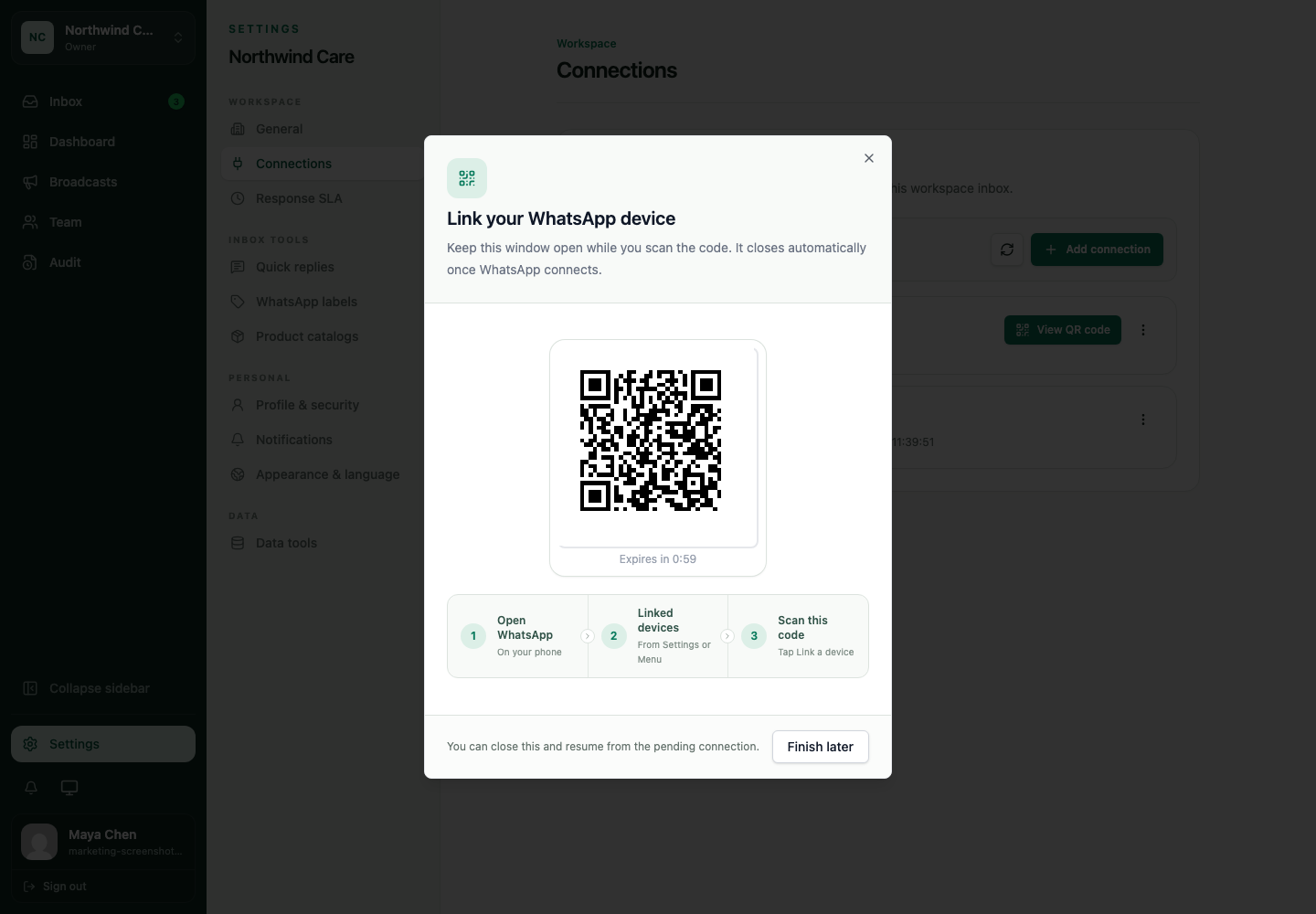
Start the connection and keep the QR dialog open. The code expires quickly, so there is no benefit in taking a screenshot of it or leaving the page for later.
If the code expires, close the attempt and start a new one. The new code is the one to scan.
3. Link the device from WhatsApp
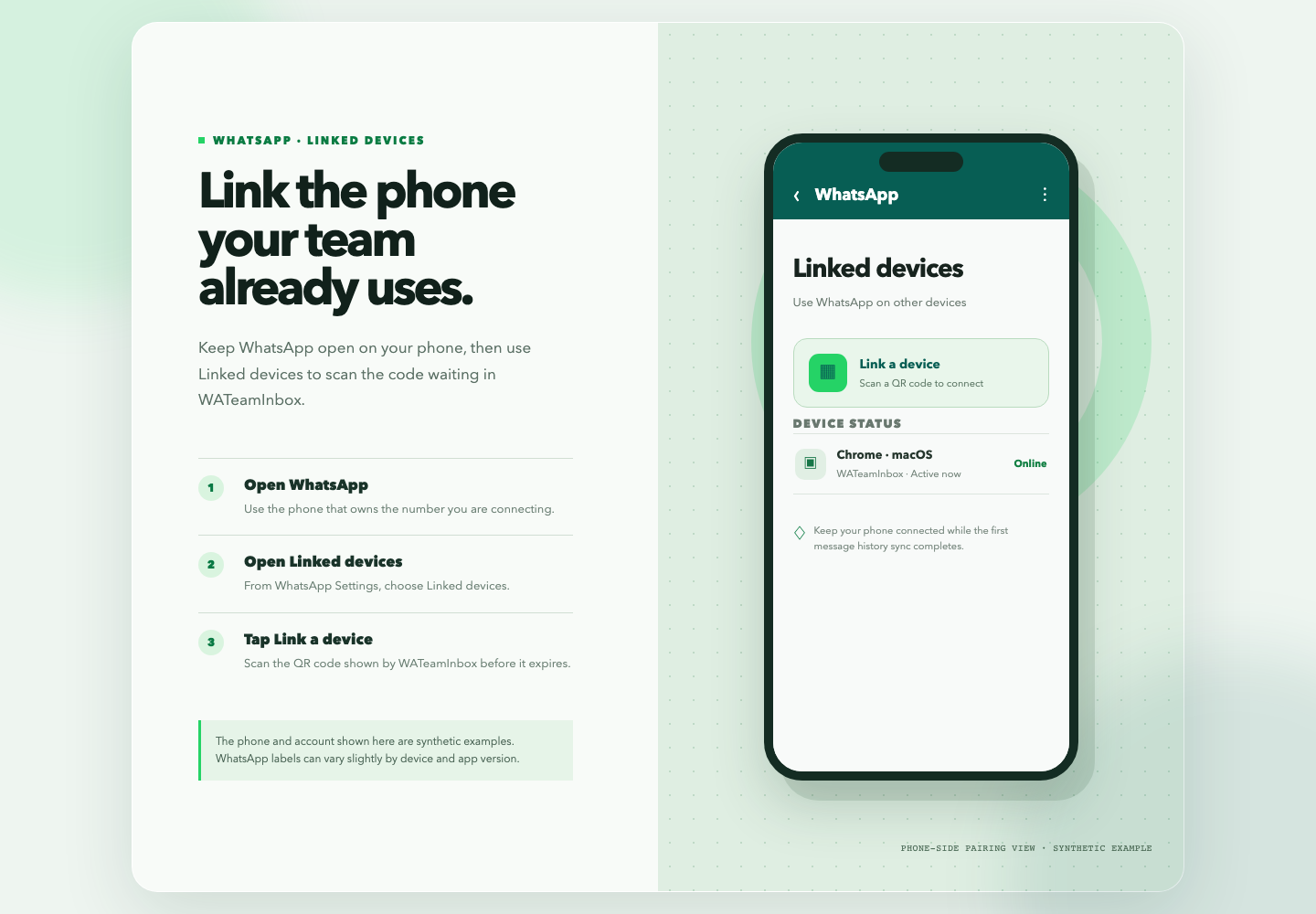
On the phone, open WhatsApp → Settings → Linked devices → Link a device. Confirm your phone security prompt if WhatsApp asks for it, then point the camera at the code shown by WATeamInbox.
The connection dialog walks through the same sequence: open WhatsApp, open linked devices, and scan. Once the phone accepts the code, keep the browser window open until the connection changes to a connected state.
4. Let history sync
WATeamInbox imports messages, contacts, groups, receipts, and available media through the connection worker. A connected account may continue processing history after the pairing dialog closes.
Let the sync settle before you start assigning work. If a conversation looks incomplete, open it again later and use its older-history action when it is available. Older messages depend on what the primary WhatsApp device makes available.
Connection states you should know
- Connected means the worker can use the linked session.
- Disconnected stops the worker while retaining the linked-device session for reconnect.
- Archived hides the connection from active work while retaining its history.
- Unlinked logs the device out and removes session credentials. The inbox history remains separate from the linked session.
If the number should come back later, disconnecting is different from archiving and unlinking. Choose the least disruptive action for the situation.
Test before you invite the team
Send a low-risk message to the number, open the conversation in the inbox, and reply from WATeamInbox. Check that the sending identity is the connection you intended and that the message status updates.
When that works, continue with inviting your team and assigning the first conversation.
Keep going
Try the workflow with one real conversation.
Create a small Cloud workspace and test the handoff with a teammate, or use the open-source application on infrastructure you control.